OpenAI dots setup guide
Make phone calls from OpenAI dots with ClawCall
Yes—your dot can make real US phone calls through ClawCall. Dots use the plugins connected to your ChatGPT account, so you add ClawCall once in ChatGPT (Developer mode, then Plugins, then the ClawCall server URL with OAuth) and ask your dot to call. You never paste an API key into chat.
https://api.clawcall.dev/mcp- Setup surface
- ChatGPT Plugins / custom MCP
- Transport
- Streamable HTTP
- Authentication
- OAuth with discovery and DCR
Before you start
- A ChatGPT plan with dots (Pro, Business Premium, or Enterprise with dots enabled) and Developer mode available.
- A ClawCall account.
- A real US +1 destination for an English-language call, in E.164 format, for any call you choose to place.
- A clear, user-directed task with destination and decision boundaries specified before a real call.
Connect OpenAI dots to ClawCall
Turn on Developer mode in ChatGPT
In ChatGPT, open Settings → Plugins → Developer mode, then turn on Developer mode under Security and login. ChatGPT labels unverified custom plugins as elevated risk; Developer mode is what lets you add ClawCall by its server URL.
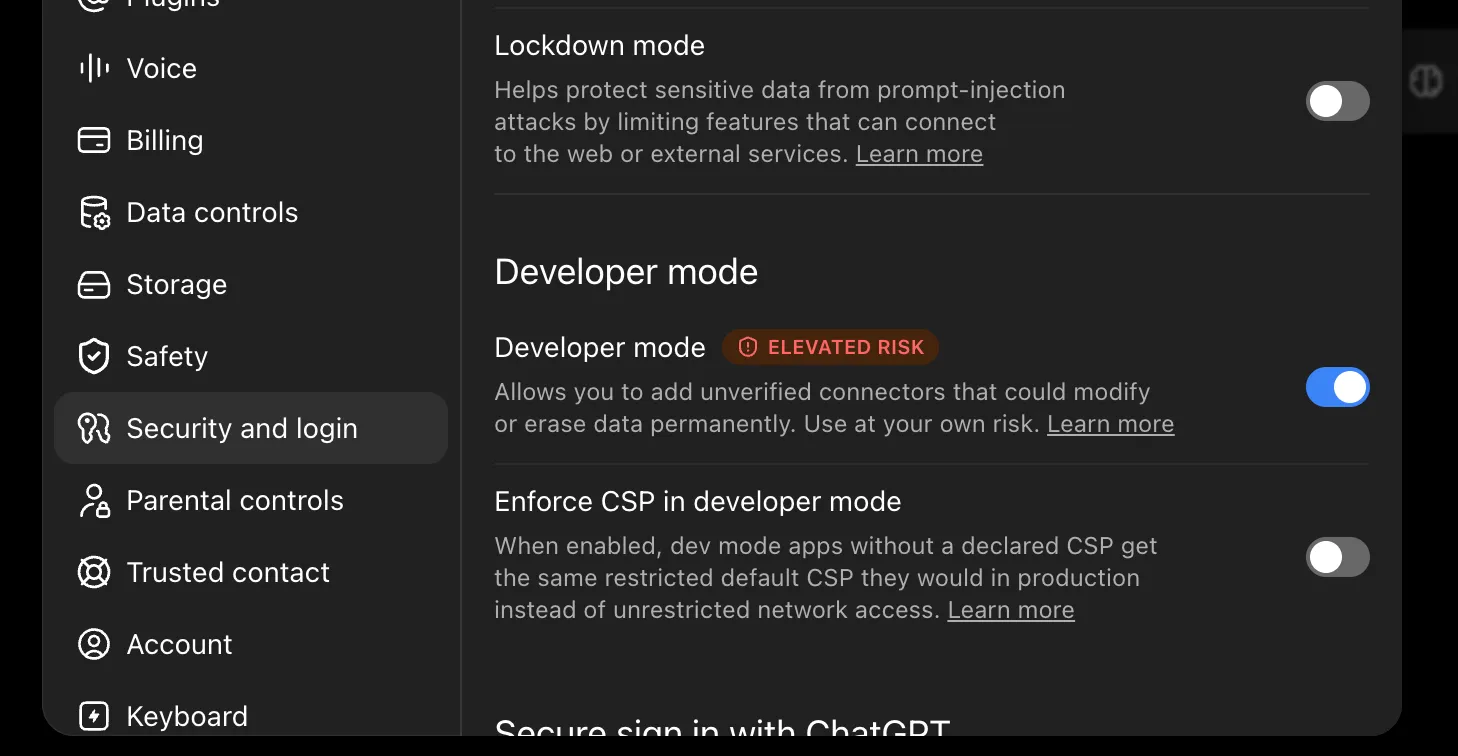
Turn on Developer mode under Security and login. Create the ClawCall plugin
Open Plugins in the ChatGPT sidebar and select the plus button. Name it ClawCall, keep Connection on Server URL, enter
https://api.clawcall.dev/mcp, and choose OAuth. Leave the advanced OAuth fields empty.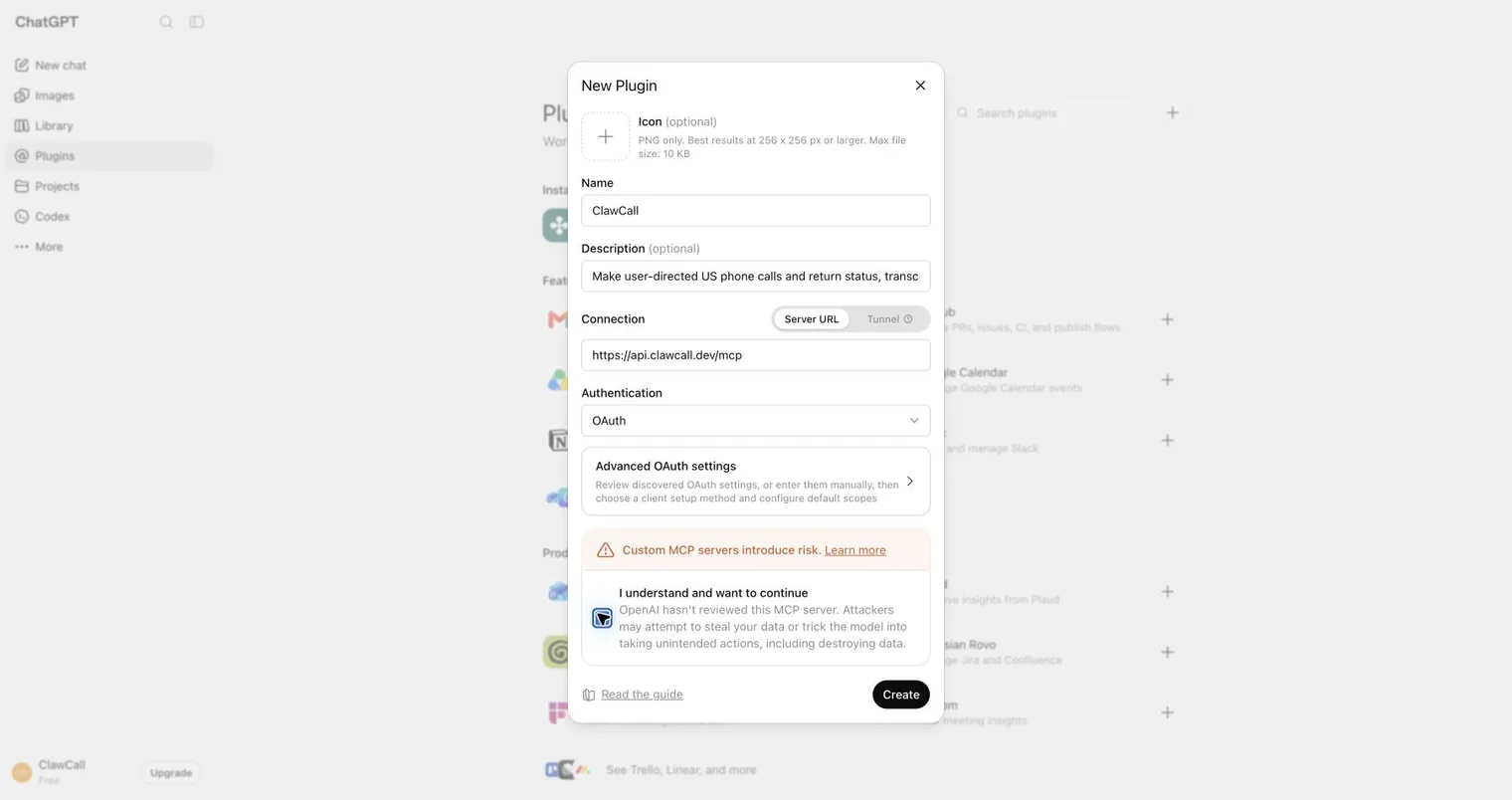
Create a plugin named ClawCall with the hosted endpoint and OAuth. Sign in with ClawCall
Select Sign in with ClawCall and use the ClawCall account your dot should call from.
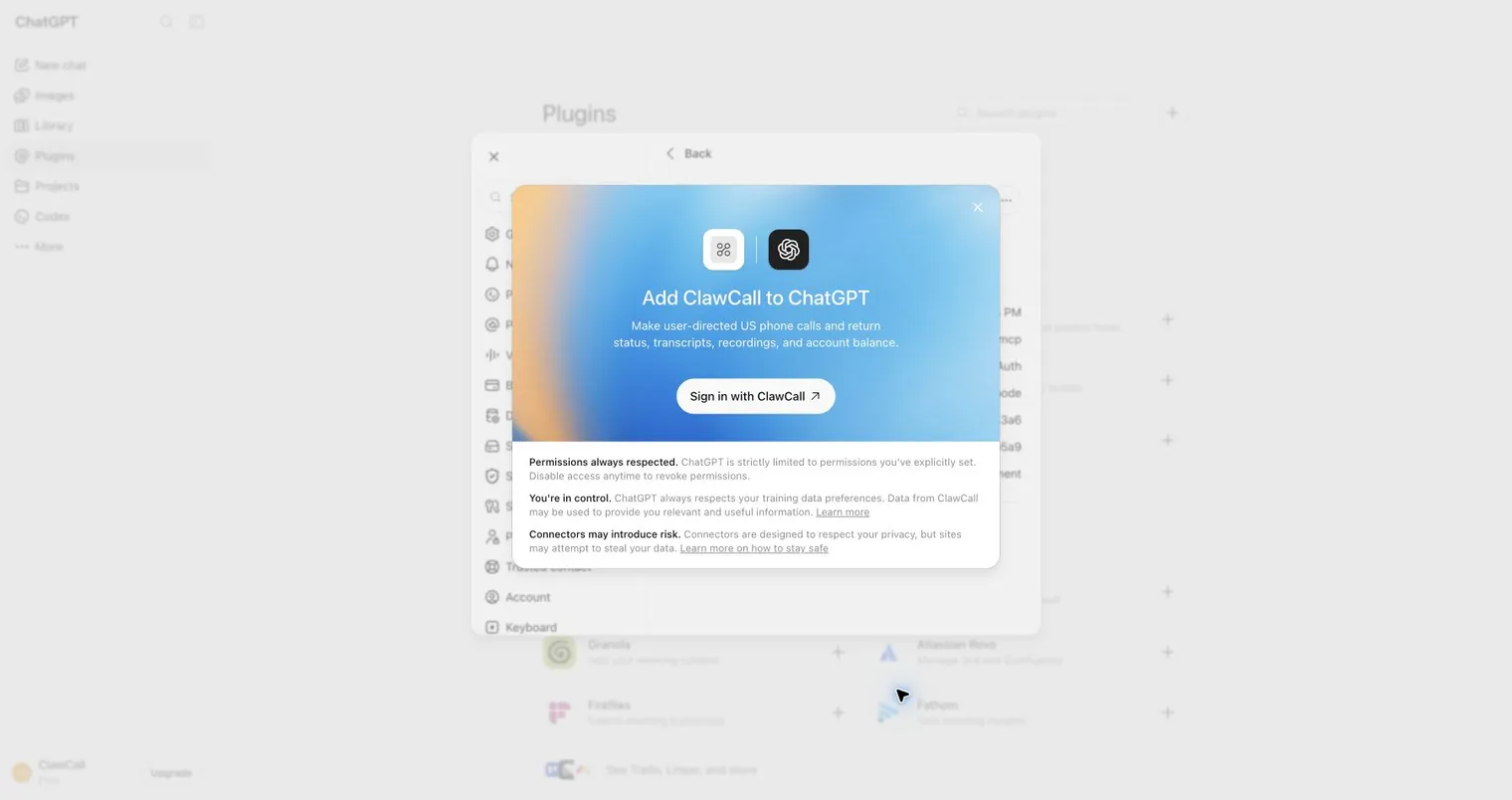
Sign in to connect the plugin to a ClawCall account. Approve access
Review the
calls:readandcalls:writescopes and choose Allow connection. The consent page names ChatGPT because your dot uses ChatGPT’s plugin connection; it receives revocable OAuth tokens, not your ClawCall API key.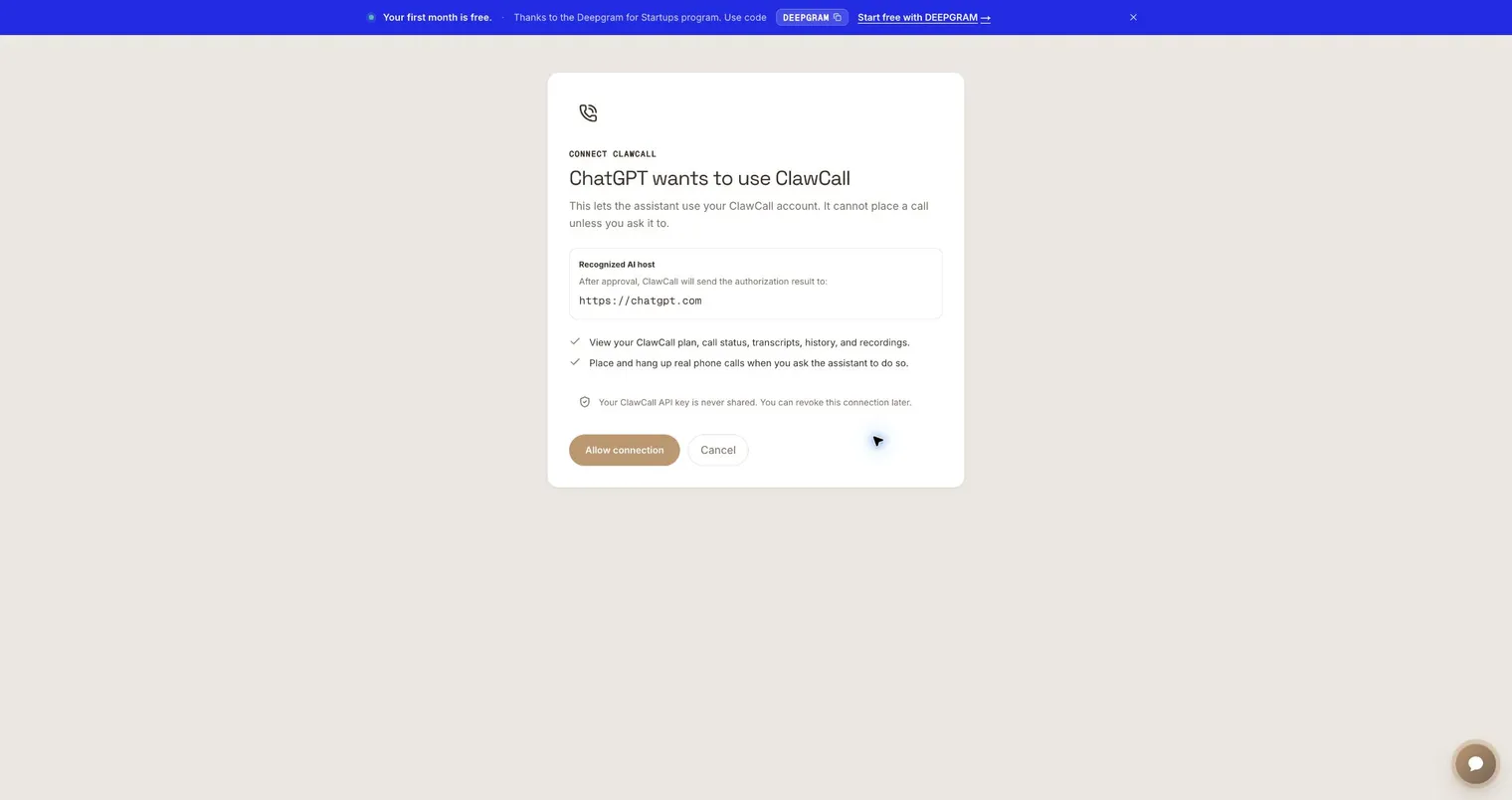
Review both bounded scopes before allowing the connection. Allow all actions
Back in Plugins → ClawCall, select Refresh under Information so ChatGPT loads all eleven tools, then open Permissions and choose Allow all actions.
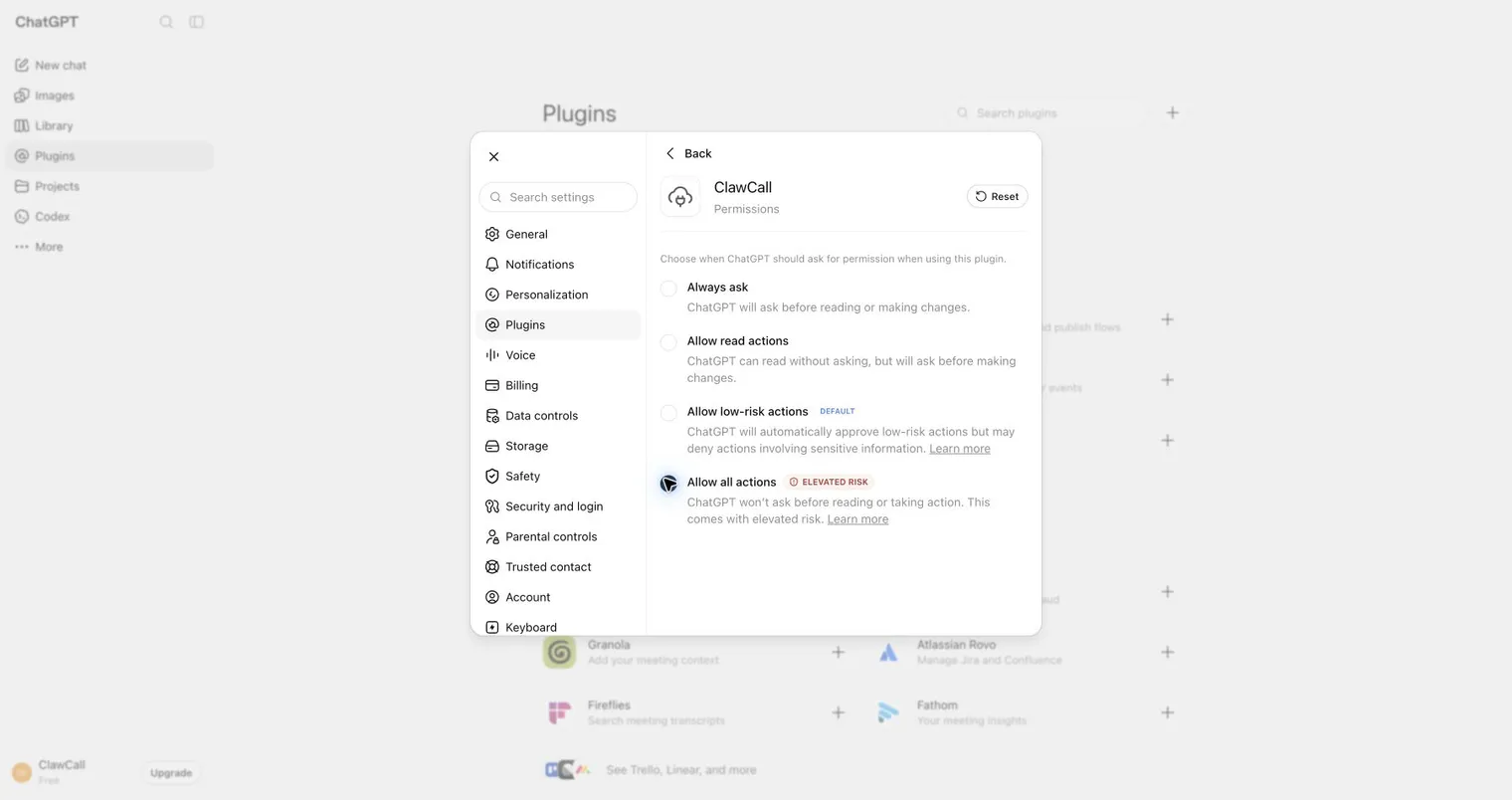
Choose Allow all actions. Open your dot
Open your dot from the ChatGPT sidebar. Dots use the apps connected to your ChatGPT account, so there is no separate ClawCall setup for the dot.
If you use Custom Rules, add one that allows ClawCall calls you ask for, so your dot doesn’t stop to confirm each step.
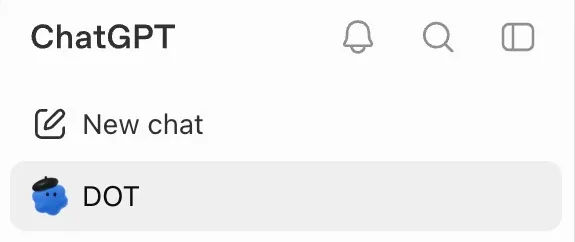
Your dot sits at the top of the ChatGPT sidebar. Run the read-only check with your dot
Message your dot:
Using ClawCall, check my plan and remaining trial allowance. Do not place a call.It calls ClawCall’sget_balanceand reports your plan without dialing anyone.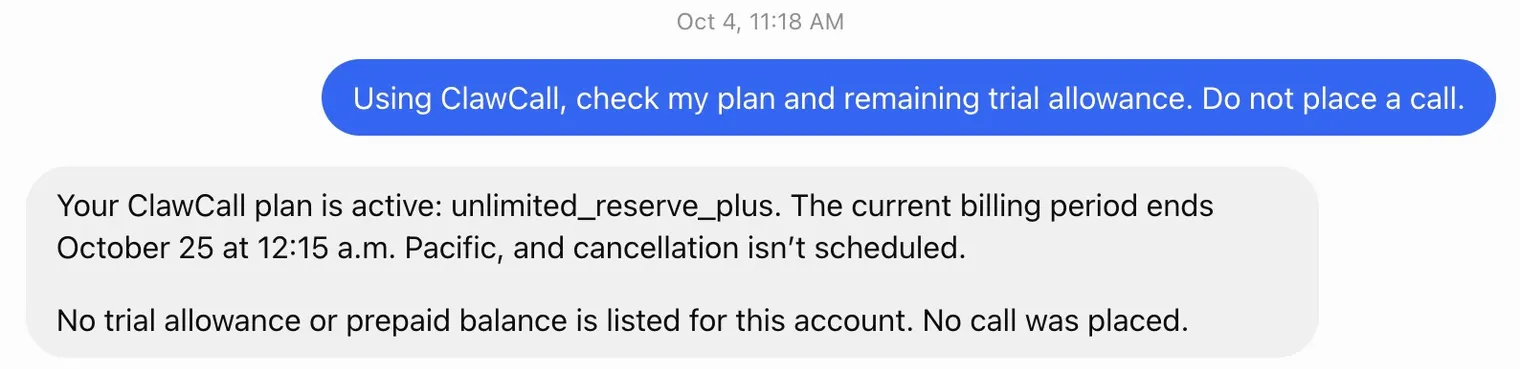
The dot reads your ClawCall plan through the ChatGPT plugin.
OAuth scopes and host permissions
The host discovers ClawCall’s authorization-server and protected-resource metadata, registers itself as a public client, and completes OAuth 2.1 authorization code with PKCE S256. It receives revocable tokens, never your ClawCall API key, and the consent flow requests two bounded scopes.
calls:read- Read plan/trial state, call settings, reserved-number status, call status, captured transcript evidence when present, history, and temporary recording access when available.
calls:write- Place and hang up real phone calls or update call settings when you ask the assistant to do so.
Recommended: Allow all actions
In ChatGPT Plugins → ClawCall → Permissions, choose Allow all actions. If your dot uses Custom Rules, allow ClawCall phone calls that you request. Your dot can then place the call, poll its status, and read any transcript evidence captured without asking at each step, while dots’ built-in safeguards and auto-review still apply.
Allow all actions only skips repeated approval prompts. It does not widen the two OAuth scopes, override workspace plugin controls or Custom Rules, or allow bulk or automated calling.
Verify read-only, then place one controlled call
Check account state first. Only after that succeeds, place the first real call to a number you control.
Using ClawCall, check my plan and remaining trial allowance. Do not place a call.
Using ClawCall, call my phone at +1XXXXXXXXXX. Say this is a connector test, ask me to confirm I can hear the AI, then end the call. Show me any transcript evidence actually captured afterward.
Real dot example: a price check by phone
We asked a dot to call the Domino’s at 728 Geary St in San Francisco and ask only the carryout price for a large pepperoni pizza. The dot placed the call through ClawCall, worked through the store’s automated phone system, and reported the $15.49 base price it heard. It also said plainly what the system did not confirm, whether pepperoni costs extra and the tax, instead of guessing. Nothing was ordered.
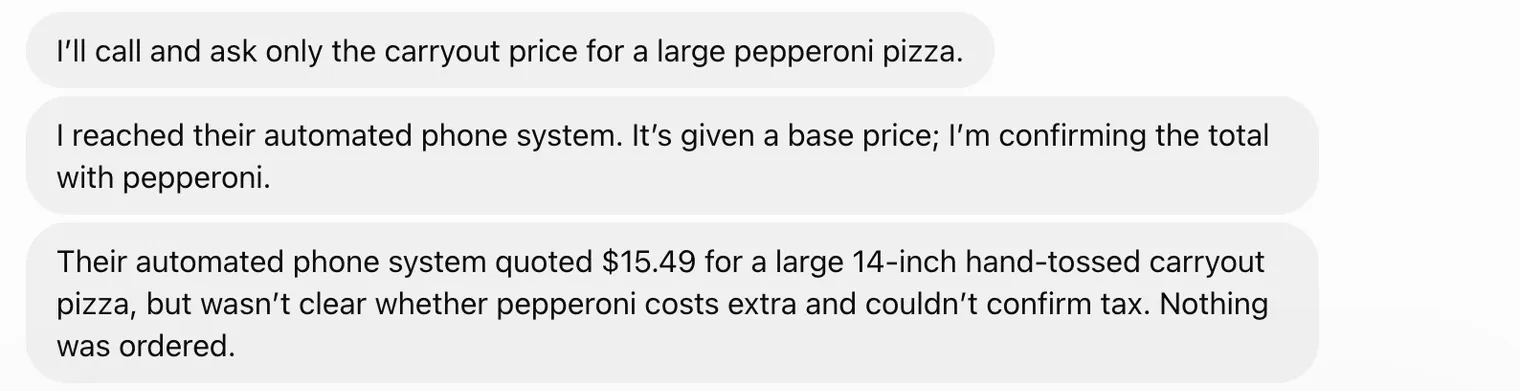
The 11 ClawCall tools
Read the transcript evidence actually captured before declaring success. A call’s outcome describes the phone network; it does not prove the task was completed.
| Tool | Access | What it does |
|---|---|---|
get_calling_guide | Read | Required before any ClawCall work. Read current workflow guidance and examples before placing calls. |
get_balance | Read | Read the signed-in account's plan and remaining trial allowance. |
get_call_settings | Read | Read reusable voice/personality, reserved-number capabilities, and inbound-assistant availability. |
update_call_settings | Write | Update global or inbound call settings in separate calls. |
place_call | Write | Start one real outbound phone call and return immediately. |
place_call_and_wait | Write | Start one call and wait up to 90 seconds for an initial result. |
get_call | Read | Read a call's lifecycle, outcome, and the latest transcript lines when present. |
get_call_transcript | Read | Read the transcript evidence captured for a call. |
list_calls | Read | Read recent call history for the connected account. |
get_recording | Read | Get a temporary, playable recording URL when one is available. |
hangup_call | Write | Stop a queued or live phone call. |
Troubleshooting
- The server returns 404 or no tools appear
- Confirm the server URL is exactly
https://api.clawcall.dev/mcp, including the trailing/mcp. Refresh or reconnect after correcting it. - You see 401 or Sign in required
- Restart the host’s Connect, Auth, or MCP login flow and approve ClawCall access again. Do not replace OAuth with a pasted ClawCall API key.
- The tool list looks stale
- Refresh or restart the MCP connection, then start a new conversation so the host loads current tool metadata. The current server exposes eleven tools.
- A phone number is rejected
- ClawCall currently calls real US numbers only. Use +1 E.164 format: +1 followed by ten digits.
- The wait ended while the call is still running
- Ask the host to poll
get_call. A host or tool time limit is not a call failure. Check the lifecycle, the outcome, and the transcript field, which can be empty. - A recording link no longer works
- Recording URLs are temporary.
get_recordingreturns the original link and cannot renew it after expiry. ClawCall deletes transcripts 7 days after a call ends and recordings 10 minutes after a call ends.
Disconnect and revoke access
- Disconnect or remove ClawCall in OpenAI dots.
- Open ClawCall Dashboard → Settings → Connected AI assistants → Disconnect to revoke its OAuth tokens.
FAQ
- Can OpenAI dots make phone calls?
- Dots can hold a voice call with you inside ChatGPT, but they can’t dial an outside phone number on their own. With ClawCall connected as a ChatGPT plugin, your dot can call a US +1 business, wait on hold, and bring back the transcript evidence captured on the call. Calls are in English.
- Do I set up ClawCall separately for my dot?
- No. Dots use the plugin connections on your ChatGPT account, which you manage through ChatGPT’s app controls. Add ClawCall once in ChatGPT and your dot can use it, subject to your plan and any workspace plugin controls.
- Will my dot call people without asking?
- No. When you aren’t actively working with it, a dot’s background research uses read-only tools that can’t take actions such as placing calls. Calls happen when you ask for them, and your Custom Rules decide whether the dot confirms first.
- Do I need to choose ClawCall before every request?
- No. Once the connection is enabled, the agent can pick ClawCall automatically when an ordinary request needs a phone call. Naming the tool is optional and mainly useful for troubleshooting.
- What does it cost?
- The ClawCall trial includes 30 calls and 30 minutes, whichever lasts later. After that, a paid plan covers ongoing calls. The host itself may need its own plan for custom connectors.
- Does a successful network outcome prove the task succeeded?
- No. A network outcome describes the call path. Read the transcript evidence actually captured before claiming a reservation, cancellation, price, or other real-world task was completed.
- How do I revoke access?
- Remove or disconnect ClawCall in the host, then open ClawCall Dashboard → Settings → Connected AI assistants → Disconnect to revoke that connection’s tokens.
Sources
Setup steps come from OpenAI dots’s own documentation and ClawCall’s product documentation, checked on the dates below.
- OpenAI: Introducing dots
- OpenAI Help Center: Manage dots in ChatGPT workspaces
- OpenAI: Connect and test your plugin
- ClawCall: Hosted MCP for AI agents
- ClawCall security
Related pages
Give OpenAI dots a phone line
Create a ClawCall account, add the endpoint, and start with the read-only check. The trial includes 30 calls and 30 minutes, whichever lasts later.