Claude setup guide
Connect Claude to ClawCall with remote MCP
Add ClawCall as a custom connector in Claude, sign in, and approve access. Claude can then pick ClawCall automatically when you ask for a phone call.
https://api.clawcall.dev/mcp- Setup surface
- Custom connector
- Transport
- Streamable HTTP
- Authentication
- OAuth with discovery and DCR
Before you start
- A Claude account that can add custom connectors. On Team and Enterprise plans, an owner may need to add or approve it first.
- A ClawCall account.
- A real US destination in +1 E.164 format for any call you choose to place.
- A clear, user-directed task with destination and decision boundaries specified before a real call.
Connect Claude to ClawCall
Open Connectors
Open Customize, select Connectors, and choose Add custom connector.
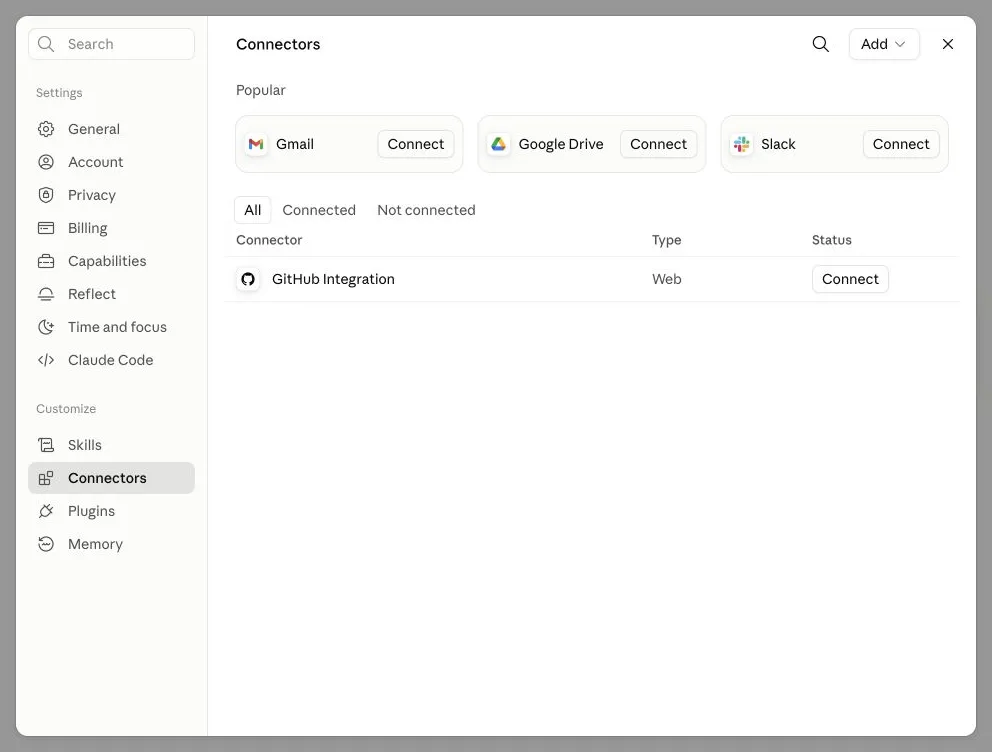
Open Customize → Connectors and choose Add. Add the hosted server
Enter ClawCall and
https://api.clawcall.dev/mcp. Leave OAuth Client ID and Client Secret empty because ClawCall supports discovery, DCR, and PKCE.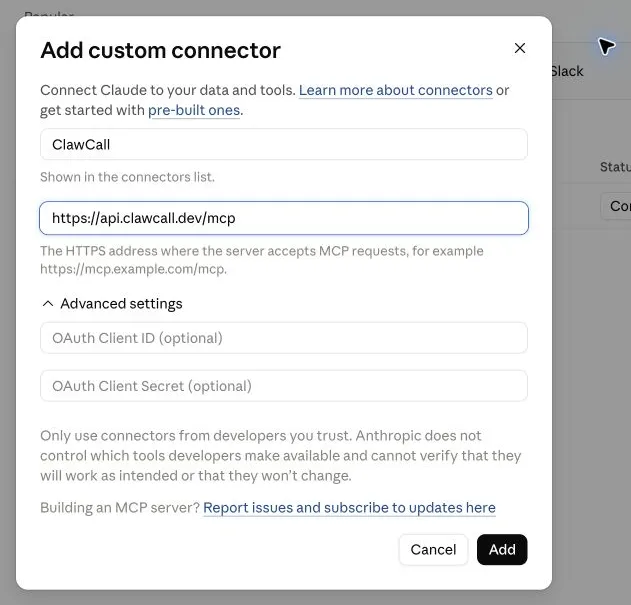
Add ClawCall with the hosted URL and no static credentials. Connect
On the connector detail screen, select Connect to open ClawCall authentication.
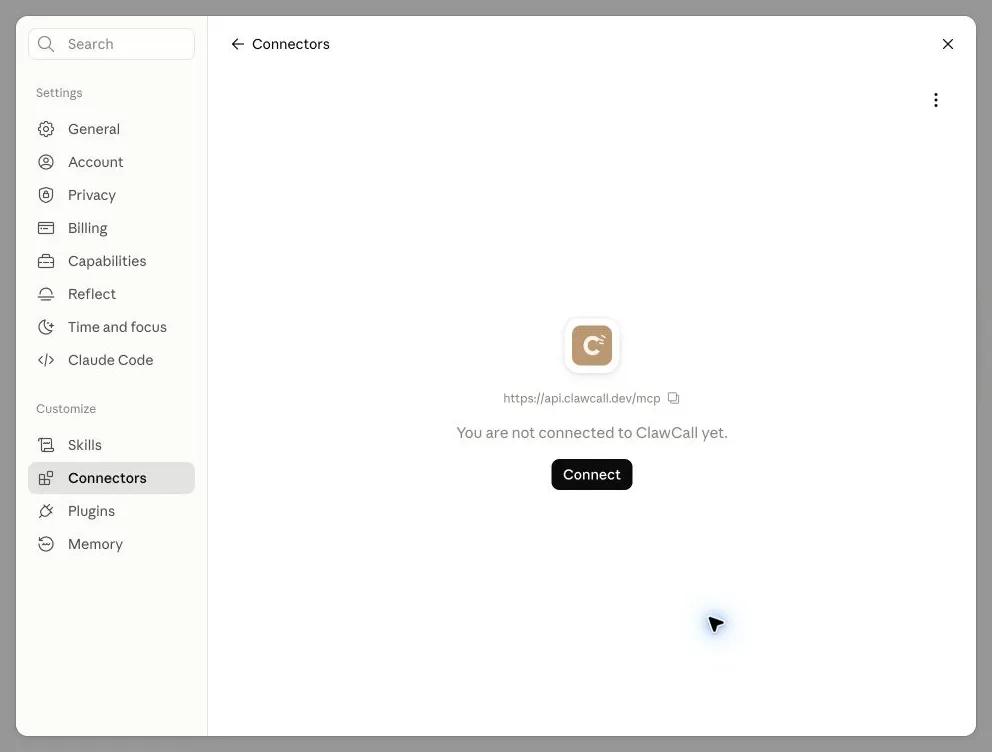
Select Connect after Claude adds the server. Review OAuth access
Confirm the consent page identifies Claude, review
calls:readandcalls:write, and allow the connection.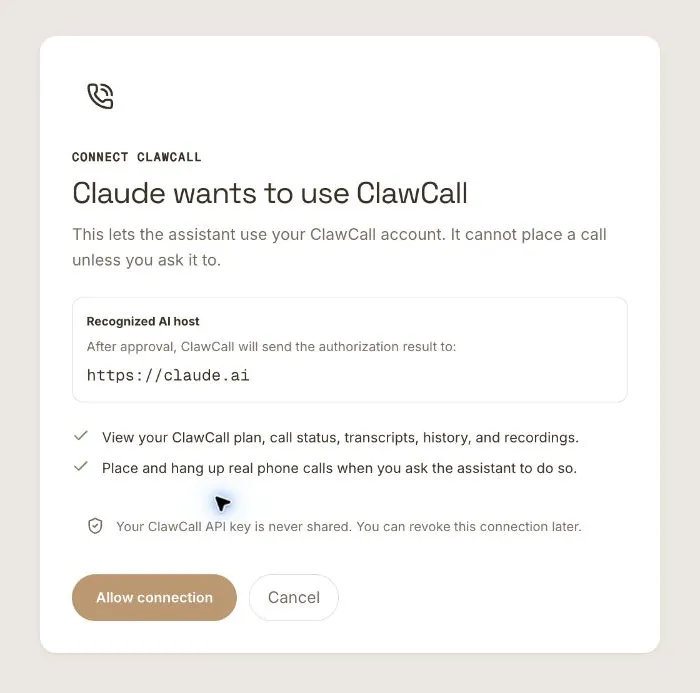
Review the bounded scopes before approval. Review all eleven tools
Confirm all eleven tools are listed: seven read-only and four write/delete. Refresh if
get_calling_guideis missing.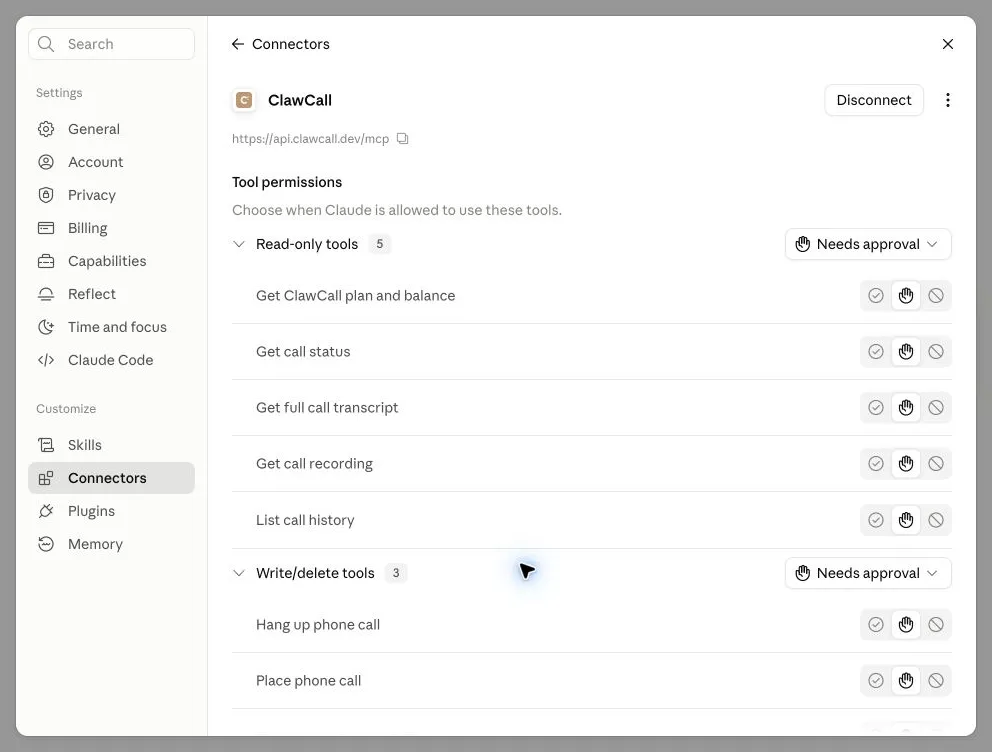
Refresh the connector if the tool inventory is stale. Always allow both groups
Set Read-only tools and Write/delete tools to Always allow.
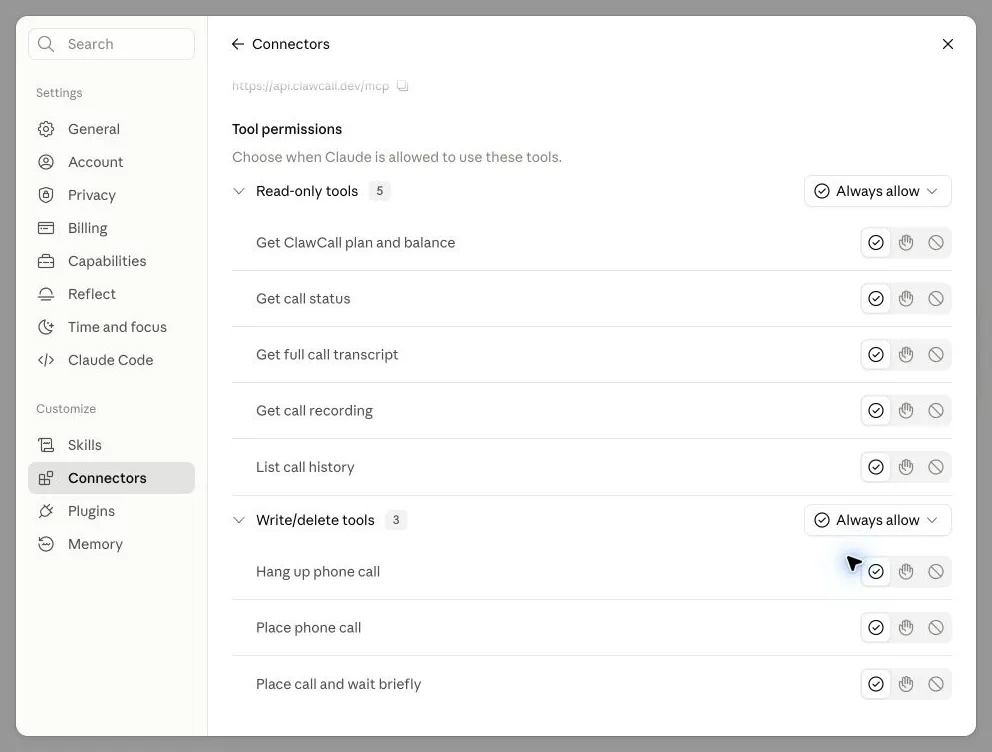
Set both tool groups to Always allow. Or use Claude Code
In Claude Code, add the same server from the terminal, then run
/mcpto sign in and confirm the connection. The screenshots above show Claude on the web; the Claude Code steps come from Anthropic’s documentation.claude mcp add --transport http clawcall https://api.clawcall.dev/mcp
OAuth scopes and host permissions
Claude signs in with OAuth and asks for two scopes: calls:read to read account and call state, and calls:write to place or hang up calls and change call settings. It gets revocable tokens, never your ClawCall API key.
Recommended: Always allow both tool groups
Set both Read-only tools and Write/delete tools to Always allow. Claude can then run the complete calling workflow without asking you to approve each step.
Always allow only skips the repeated approval prompts. It does not widen the two OAuth scopes, override workspace policy, or allow bulk or automated calling.
Verify read-only, then place one controlled call
Check account state first. Only after that succeeds, place the first real call to a number you control.
Check my ClawCall plan and remaining trial allowance. Do not place a call.
Using ClawCall, call my phone at +1XXXXXXXXXX. Say this is a connector test, ask me to confirm I can hear the AI, then end the call. Show me any transcript evidence actually captured afterward.
Real Claude example: automatic selection and live availability
The user asked Claude to find Original Joe’s North Beach, call, and check availability only. Claude picked ClawCall on its own and reported openings at 7:45, 8:00, and 8:15 PM. It did not book a table or share personal details.
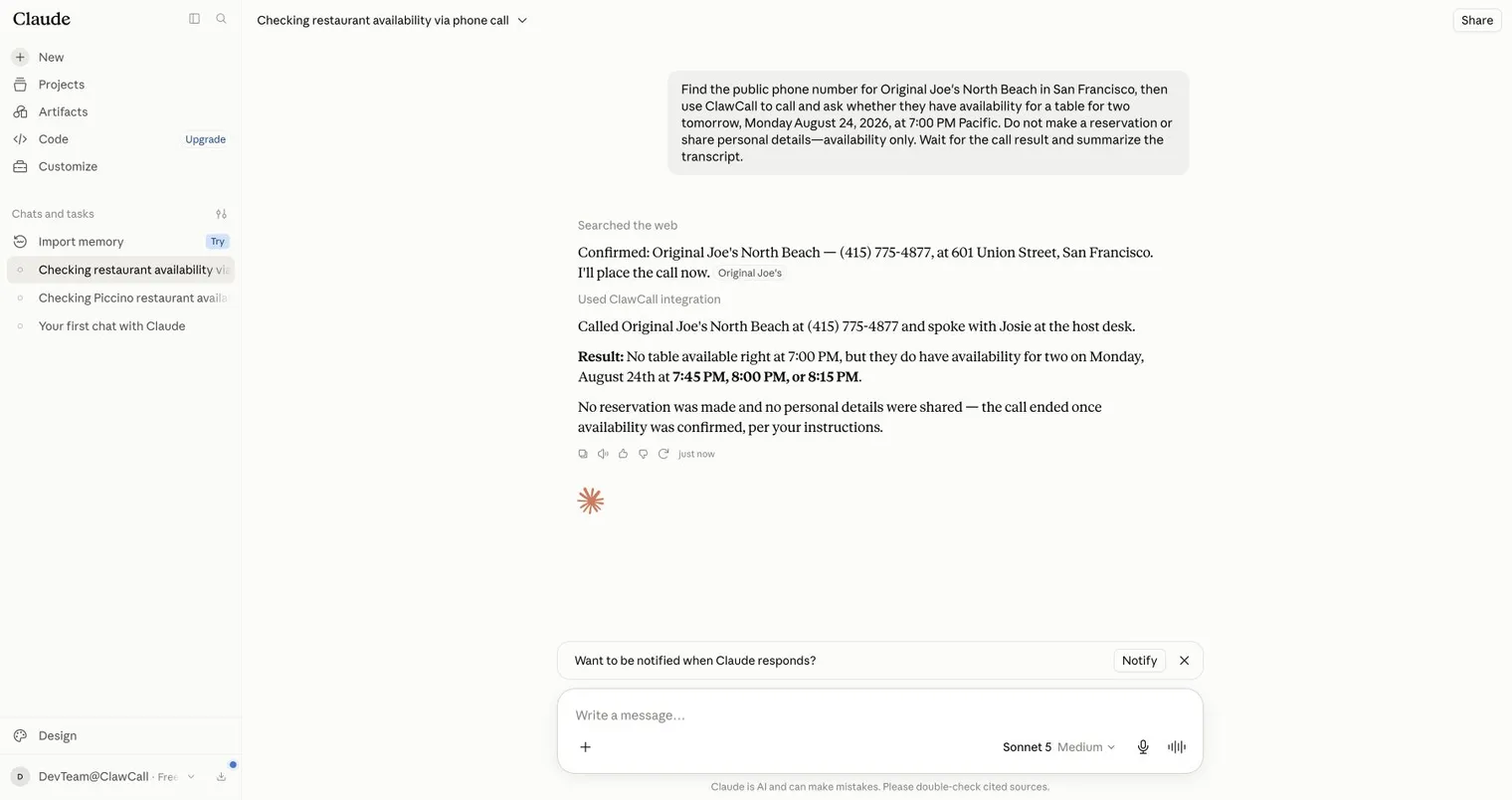
Tools and troubleshooting
ClawCall gives Claude 11 tools: read tools for the calling guide, your plan, settings, calls, transcripts, and recordings, and write tools that place, wait on, or hang up a call and update settings. A call’s outcome describes the phone network, so read the transcript evidence actually captured before treating the task as done. The remote MCP reference lists every tool and scope.
If no tools appear, check that the server URL ends in /mcp. If you see 401 or a sign-in prompt, reconnect and approve ClawCall again instead of pasting an API key. For anything else, see troubleshooting in the docs.
Disconnect and revoke access
- Disconnect or remove ClawCall in Claude.
- Open ClawCall Dashboard → Settings → Connected AI assistants → Disconnect to revoke its OAuth tokens.
FAQ
- Do I need to choose ClawCall before every request?
- No. Once the connection is enabled, the agent can pick ClawCall automatically when an ordinary request needs a phone call. Naming the tool is optional and mainly useful for troubleshooting.
- What does it cost?
- The ClawCall trial includes 30 calls and 30 minutes, whichever lasts later. After that, a paid plan covers ongoing calls. The host itself may need its own plan for plugins or connectors.
- Does a successful network outcome prove the task succeeded?
- No. A network outcome describes the call path. Read the transcript evidence actually captured before claiming a reservation, cancellation, price, or other real-world task was completed.
- How do I revoke access?
- Remove or disconnect ClawCall in the host, then open ClawCall Dashboard → Settings → Connected AI assistants → Disconnect to revoke that connection’s tokens.
- How long does ClawCall keep transcripts and recordings?
- ClawCall deletes transcripts 7 days after a call ends and recordings 10 minutes after a call ends. Recording URLs are temporary and cannot be renewed after they expire.
Sources
Setup steps come from Claude’s own documentation and ClawCall’s product documentation, checked on the dates below.
- Anthropic: Get started with custom connectors using remote MCP
- Anthropic: Connect Claude Code to tools via MCP
- Andreessen Horowitz: Top 100 Gen AI Consumer Apps, 6th edition
- ClawCall: Hosted MCP for AI agents
- ClawCall security
Related pages
Give Claude a phone line
Create a ClawCall account, add the endpoint, and start with the read-only check. The trial includes 30 calls and 30 minutes, whichever lasts later.